iOS 1.5 is now released. Availability can vary by App Store region. Older guides and screenshots below retain their original version labels; they are not 1.5 screenshots. This update does not announce a new Mac release.
Export every photo-print page together as ordered JPEG files, find projects by their first-page layout cover, and sort history by recent changes or name. A multi-page JPEG batch still uses one print project, not one allowance per page.
Max now also offers an optional monthly auto-renewing subscription. Pro and lifetime Max remain one-time purchases. Check the regional price and billing terms in Apple’s purchase screen; manage or cancel monthly renewal through your Apple Account. Buying lifetime Max does not cancel a subscription.
iOS 1.5 is now released. Availability can vary by App Store region. Older guides and screenshots below retain their original version labels; they are not 1.5 screenshots. This update does not announce a new Mac release.
Pro and lifetime Max remain one-time purchases and do not renew. Version 1.5 adds an optional Max subscription that renews every month until cancelled. While active, it provides Max access, including additional print-project exports, watermark-free background replacement and Image Notes without fixed project or finished-version allowance caps. Device and storage limits still apply. Apple shows the available product, regional price and billing terms before purchase. Apple StoreKit verifies purchases, subscription expiry and renewal status. Manage or cancel the subscription through your Apple Account. Buying lifetime Max does not cancel an existing subscription. After subscription access ends, remaining valid lifetime purchases determine your access.
The archive and projects stay on the device and do not automatically sync between iPhone, iPad and Mac. Restoring eligible Apple purchases is separate from moving files. Feature and purchase availability depend on the installed version and what Apple makes available in your region.
Actual iPhone/iPad 1.4 (47) and Mac 1.4 (28) interfaces. Device and interface language are identified below each image.
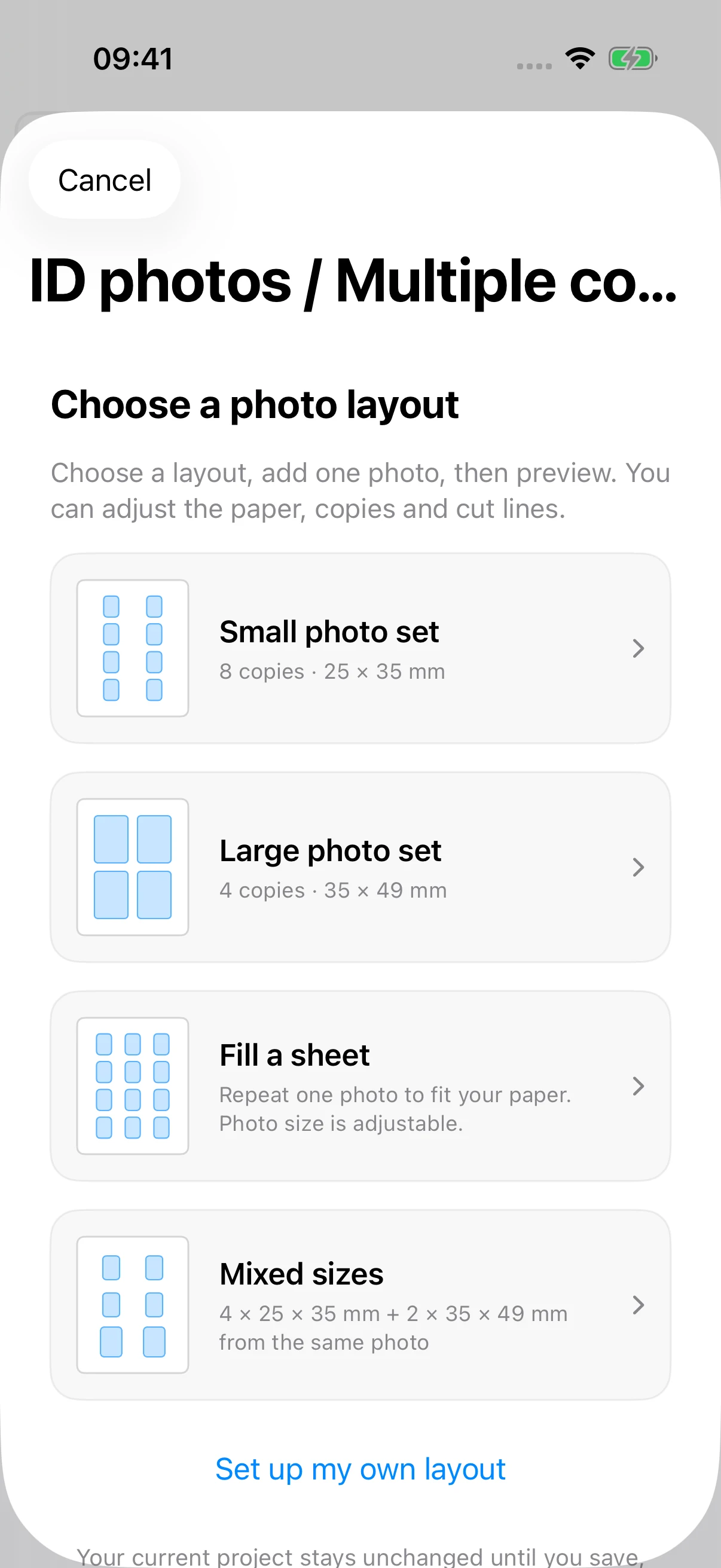
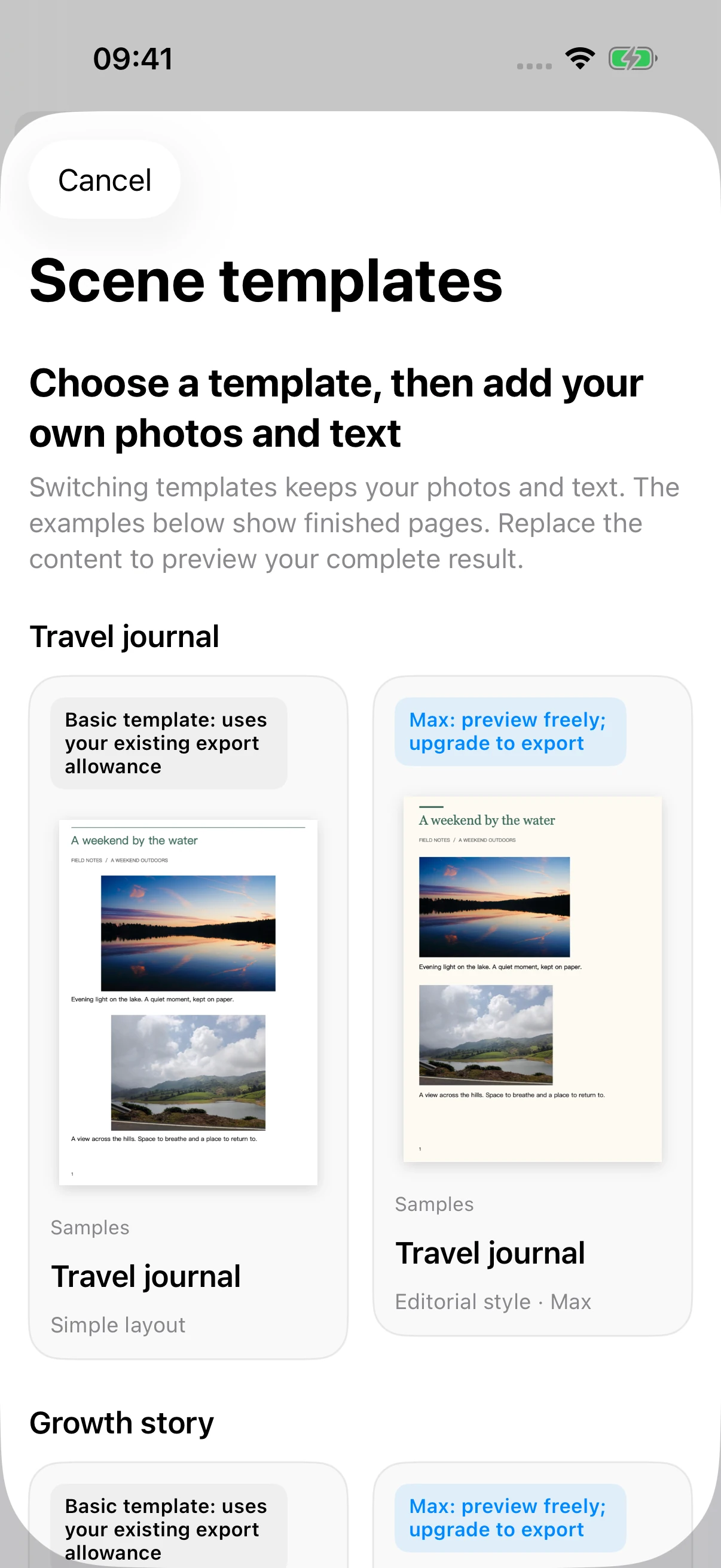
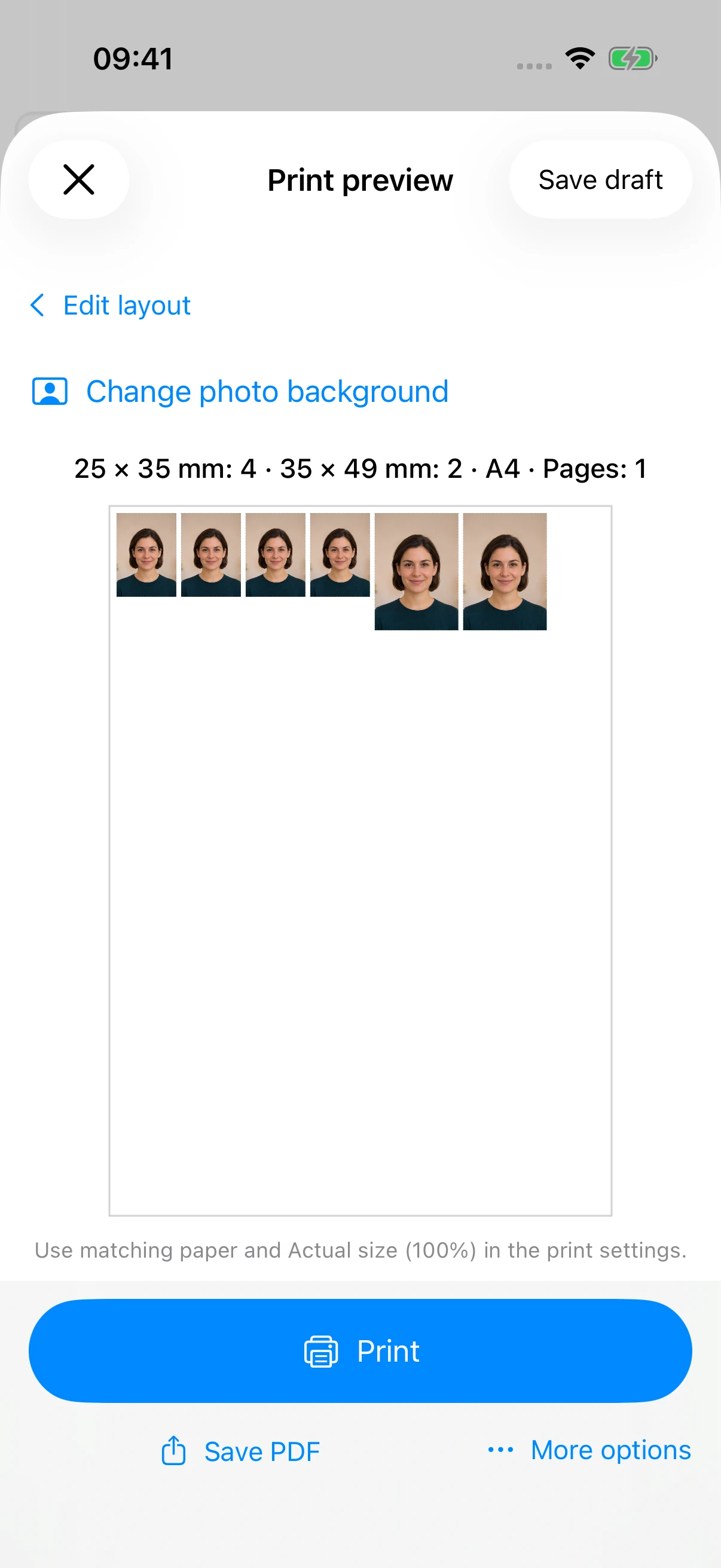
iPhone · 1.4 (47) · English interface · ID-photo presetsActual PaperSnips 1.4 screenshotsiPhone · 1.4 (47) · English interface · Image Notes templatesActual PaperSnips 1.4 screenshotsiPhone · 1.4 (47) · English interface · Mixed-size portrait layoutActual PaperSnips 1.4 screenshotsFictional adult portrait used as a demonstration.
The native Mac app is now available
Finder import and drag-and-drop, physical-size photo layouts, PDF/JPEG export and native system printing. Projects stay local without automatic device sync.
Photo-and-text projects in 1.3 let you arrange images, captions and independent text paragraphs in stacked, side-by-side or two-column layouts, then export PDF or long images. Photo printing stays separate.
PaperSnips 1.4 is now available for iPhone, iPad and Mac. Availability varies by App Store region. Local projects do not automatically sync between devices.
A few useful checks for printing, exports, and your saved projects.
PAPERSNIPS 1.4 · NOW AVAILABLE
Where is each feature?
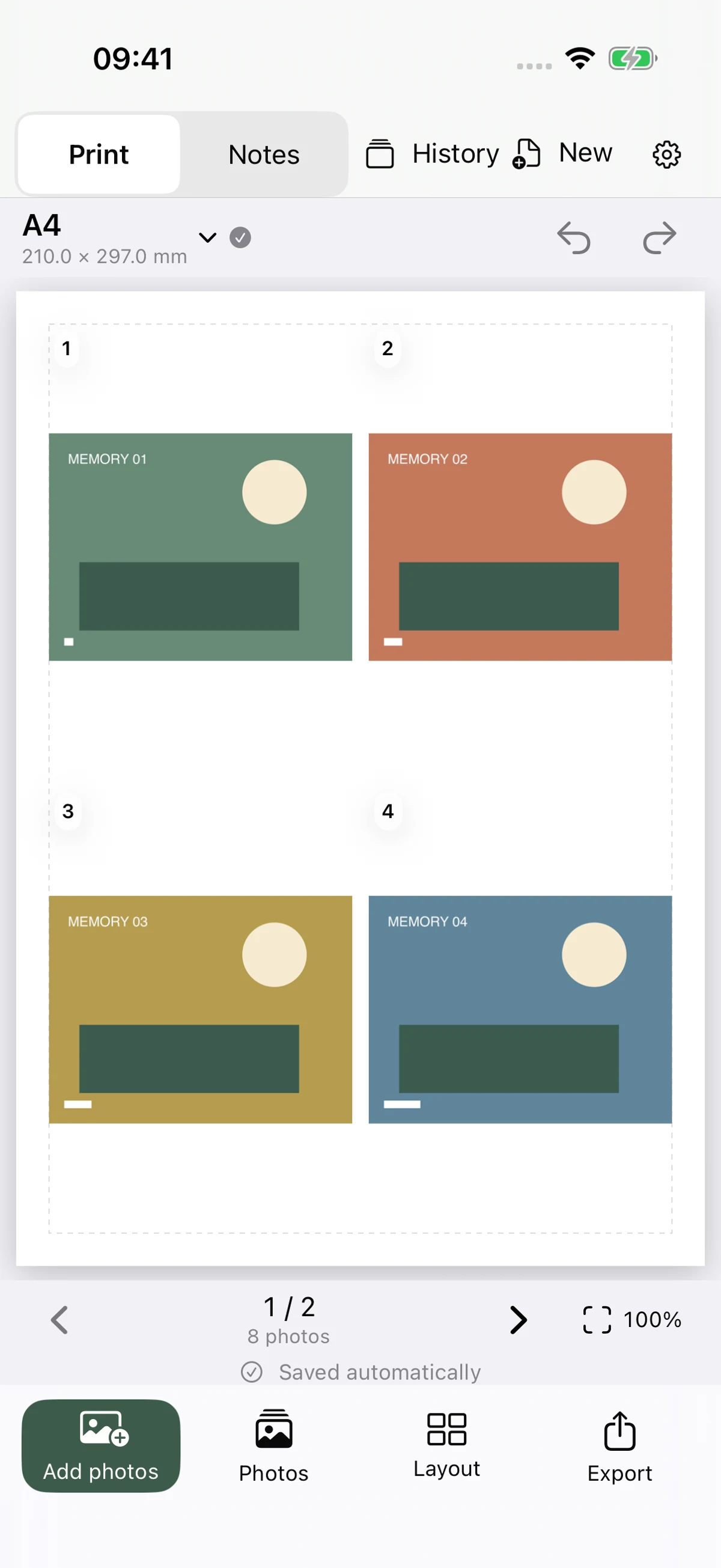
Follow the photo-printing workflow step by step. Screenshots show the actual 1.4 interface; sample images are fictional artwork. Update to 1.4 before following these controls.
01
Start a project. Return to your work.
1.4: New / History (at the top)
In 1.4, choose New at the top to create a project. The new-project sheet explains the remaining export allowance before you continue. Adding photos starts local autosave; cancelling photo selection leaves no empty saved project.
Use the History control at the top to reopen a saved project. The menu beside its name offers Rename, Duplicate project and Move to Recently Deleted. Recently Deleted has a Restore action. Projects stay on this device; editable project sync between devices is not available.
iPhone · 1.4 (47) · English interfaceActual PaperSnips 1.4 screenshots
02
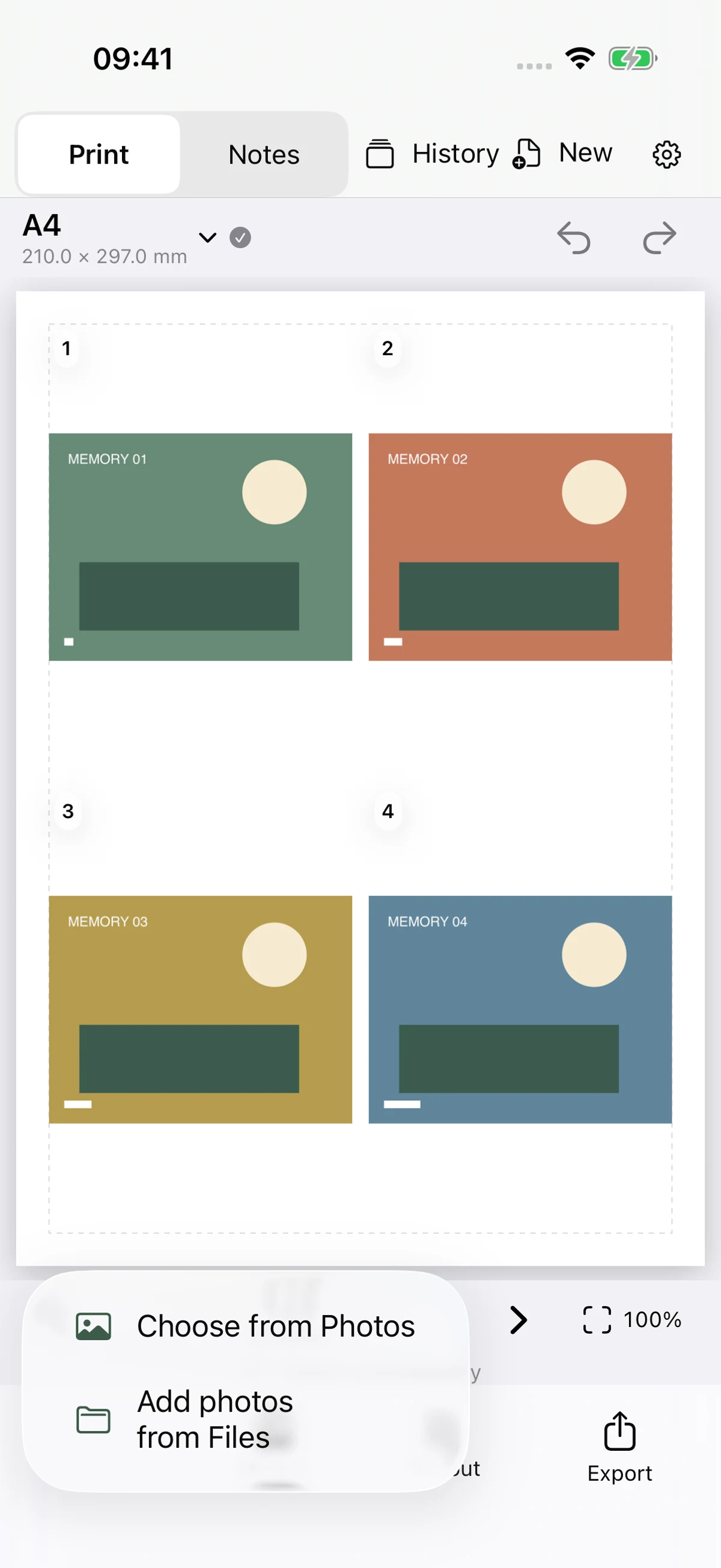
Bring in photos from Photos or Files.
Add → Choose photos from library / Add photos from Files
Choose the system photo picker or Files. Select the images you want to arrange, then return to the canvas. Use Add again for another batch. Photos are processed on your device.
If an image is rejected, open the import-results notice to see why. Rejected files are not silently added. Undo/redo applies to editing; importing another batch resets that editing history.
iPhone · 1.4 (47) · English interfaceActual PaperSnips 1.4 screenshots
03
Choose the page and how photos fit.
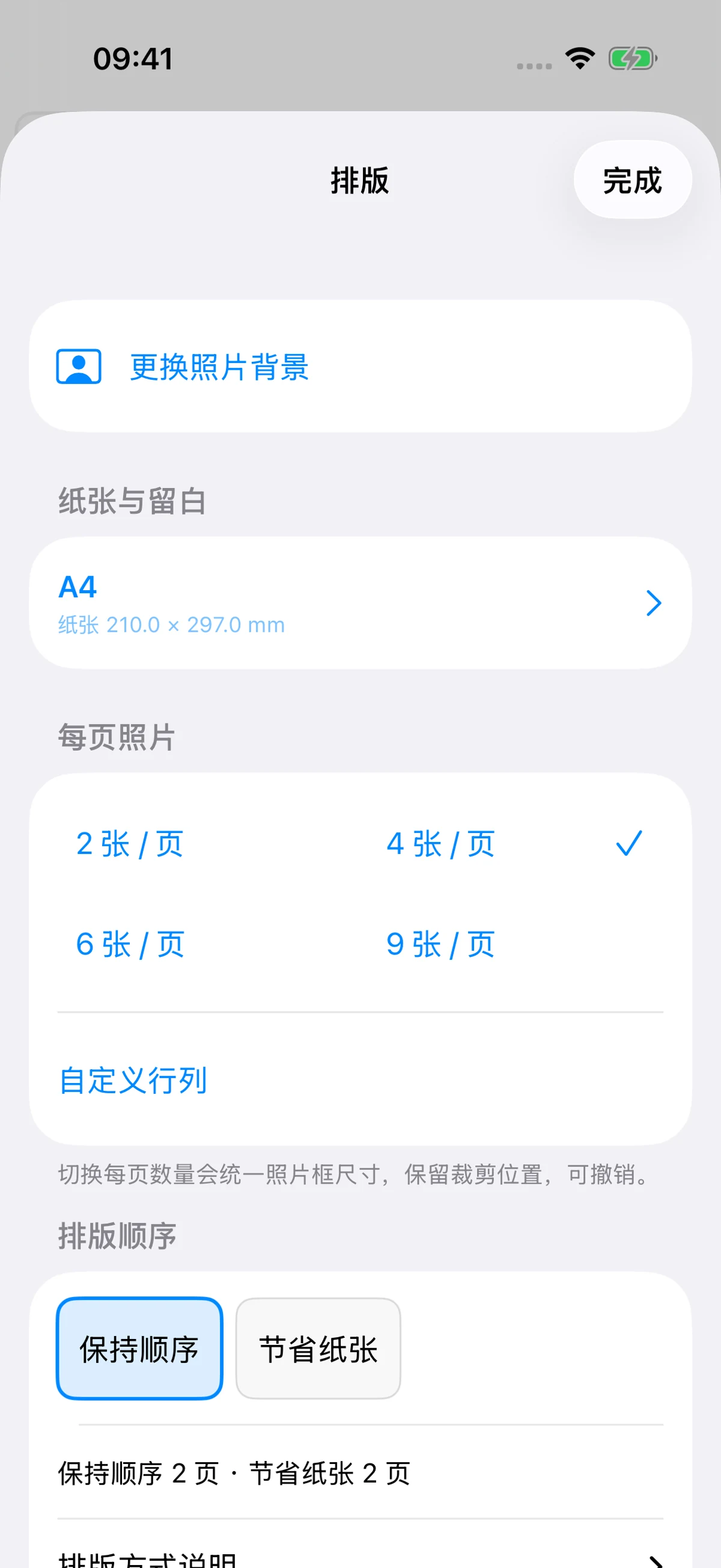
Layout → Paper and margins · Photos per page · Layout order
Open Layout at the bottom. Choose the paper, orientation, margins, spacing and border, then 2, 4, 6 or 9 photos per page, or a custom grid. A new project starts on A4. The A4 title at the top also opens page settings.
Keep order preserves photo order. Save paper may rearrange photos without rotating or shrinking them; compare the page counts before choosing. Changing the photos-per-page grid makes frame sizes uniform and can be undone.
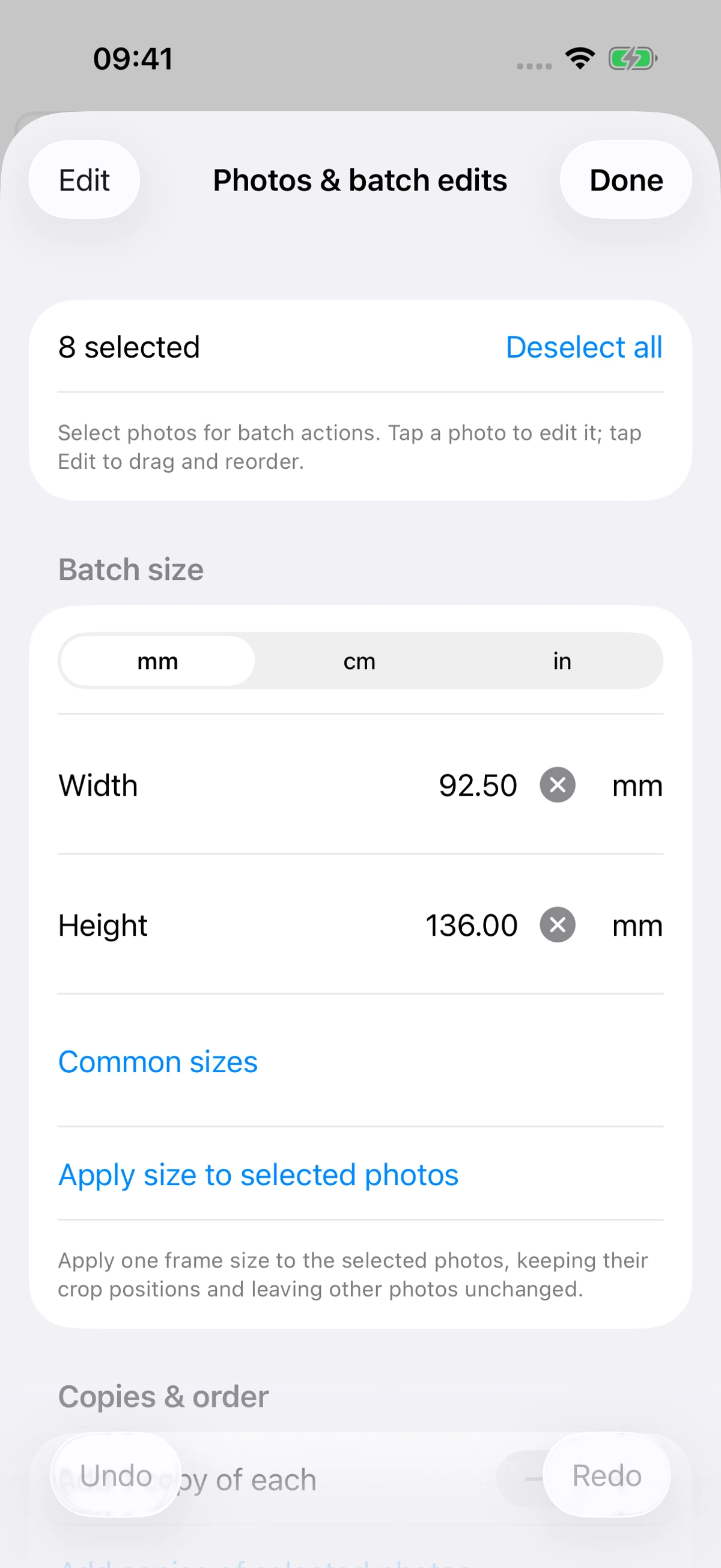
Photos → select photos → Batch size / Copies and order
Open Photos and tick the images to change together. Choose mm, cm or in, type width and height (or choose Common sizes), then Apply size to selected photos. Their crop positions remain; unselected photos keep their sizes.
For duplicates, set Add copies of each and tap Add copies of selected photos. The number means additional copies: 1 adds one copy beside each original. Edit enables drag-to-reorder; selected photos can also move first, move last or reverse. Each batch resize or copy is one undo step.
iPhone · 1.4 (47) · English interfaceActual PaperSnips 1.4 screenshots
05
Choose the part of the photo to keep.
Tap a photo on the canvas, or its name in Photos
Open the photo editor to set one frame’s dimensions. Use Keep whole (Fit) to retain the whole image or Fill to cover the frame. In Fill, drag the photo in the crop preview or use the focus sliders. Tap Apply to commit, or Cancel to leave the draft.
The canvas view control (100%) and pinch gesture zoom the preview for small photos; Fit to window resets the view. Preview zoom does not change print dimensions. On a wider iPad, photo editing can appear beside the canvas.
06
Check size and quality before output.
Export → choose an output → Output check
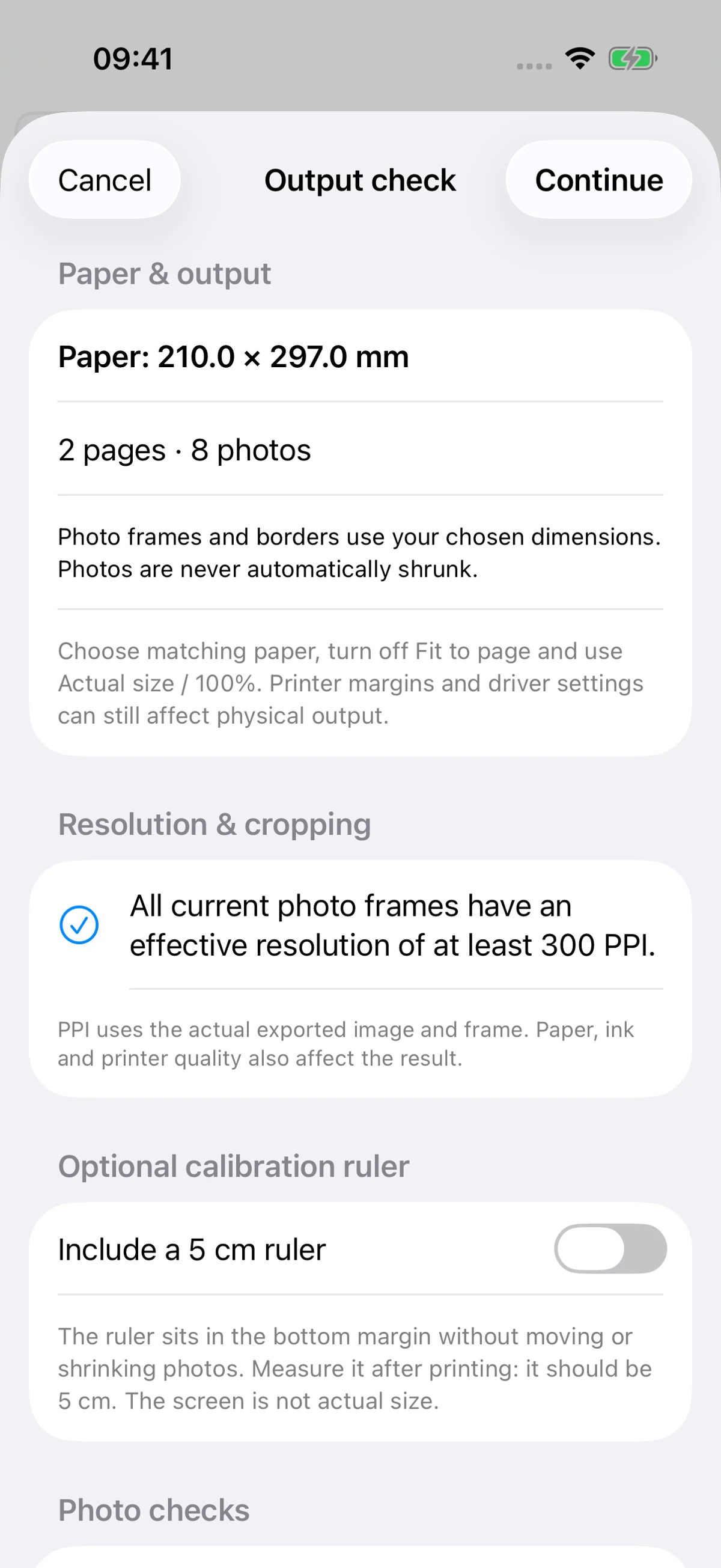
Review paper size, page count, frame sizes and effective PPI. Low-resolution warnings help you choose a smaller frame or a sharper source. A 300 dpi export cannot add detail missing from a photo.
Optionally include the 5 cm calibration ruler when the page has enough margin. Measure it after a test print; the on-screen preview is not actual size. The ruler needs at least an 8 mm margin and 60 mm paper width.
iPhone · 1.4 (47) · English interfaceActual PaperSnips 1.4 screenshots
07
Print, save a PDF, or share a JPEG.
Export → Print all pages / Save or share all PDF / Current-page JPEG
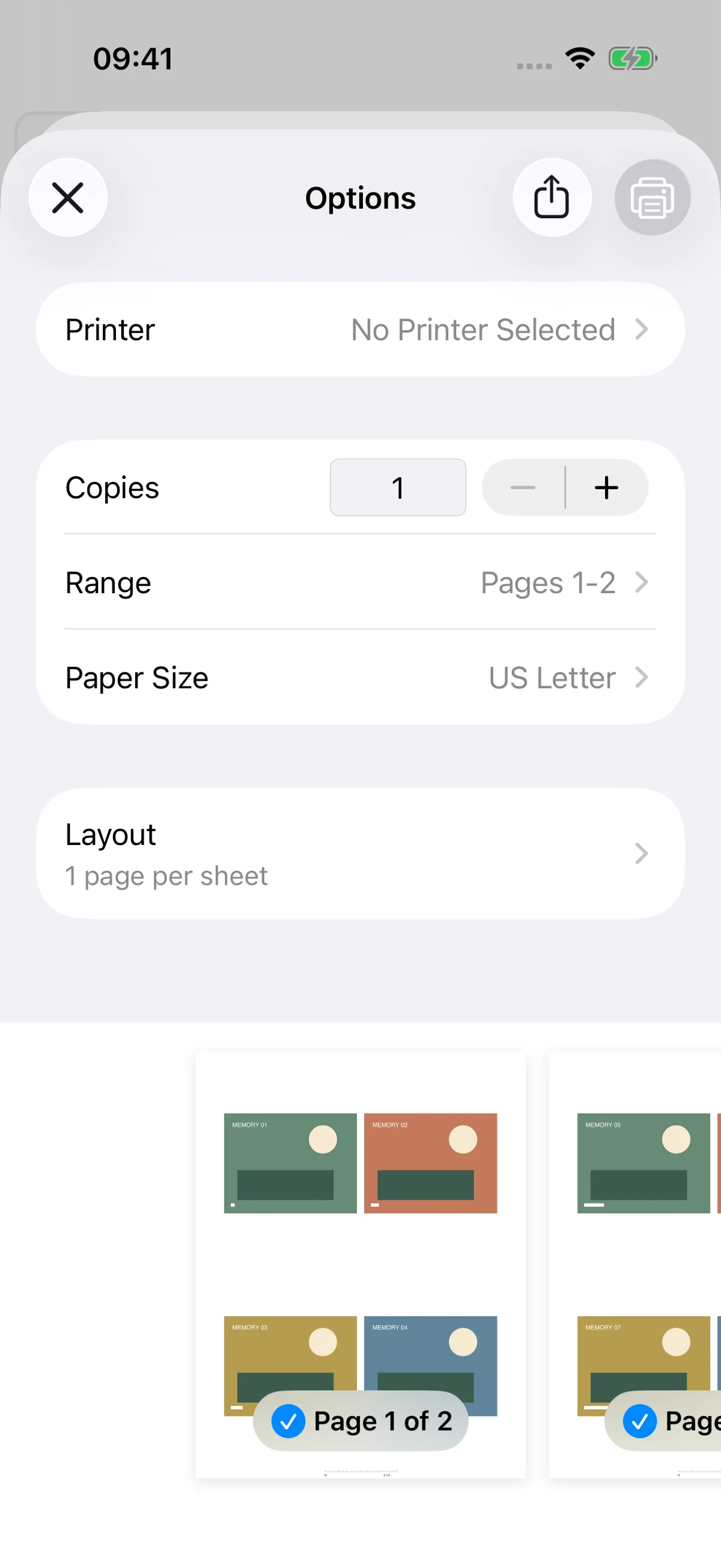
Choose Print all pages, continue through Output check, then use the system print preview with a compatible AirPrint printer. For a print shop or Files, choose Save / share all PDF. Current-page JPEG exports only the selected page at 300 dpi.
Select matching paper and Actual size / 100% wherever the print tool allows. Printer margins and driver settings can change the result, so measure a test print. A submitted print job does not prove a completed physical print.
iPhone · 1.4 (47) · English interfaceActual PaperSnips 1.4 screenshotsSystem print options only: no printer selected; US Letter is shown. Choose the paper size matching your document before printing.
08
Find language, Pro and purchase restoration.
Top-right … → Settings & Help
Open Settings & Help to switch English / Simplified Chinese and find purchase restoration. Free exports cover 3 different projects in total; there is no daily reset and re-exporting the same project does not use another allowance.
Pro is an optional one-time purchase for exports from additional projects. Apple shows the local price and handles payment. Use Restore Purchases with the Apple Account used to buy Pro. Device storage and technical limits still apply.
iPhone and iPad adapt to the available space.
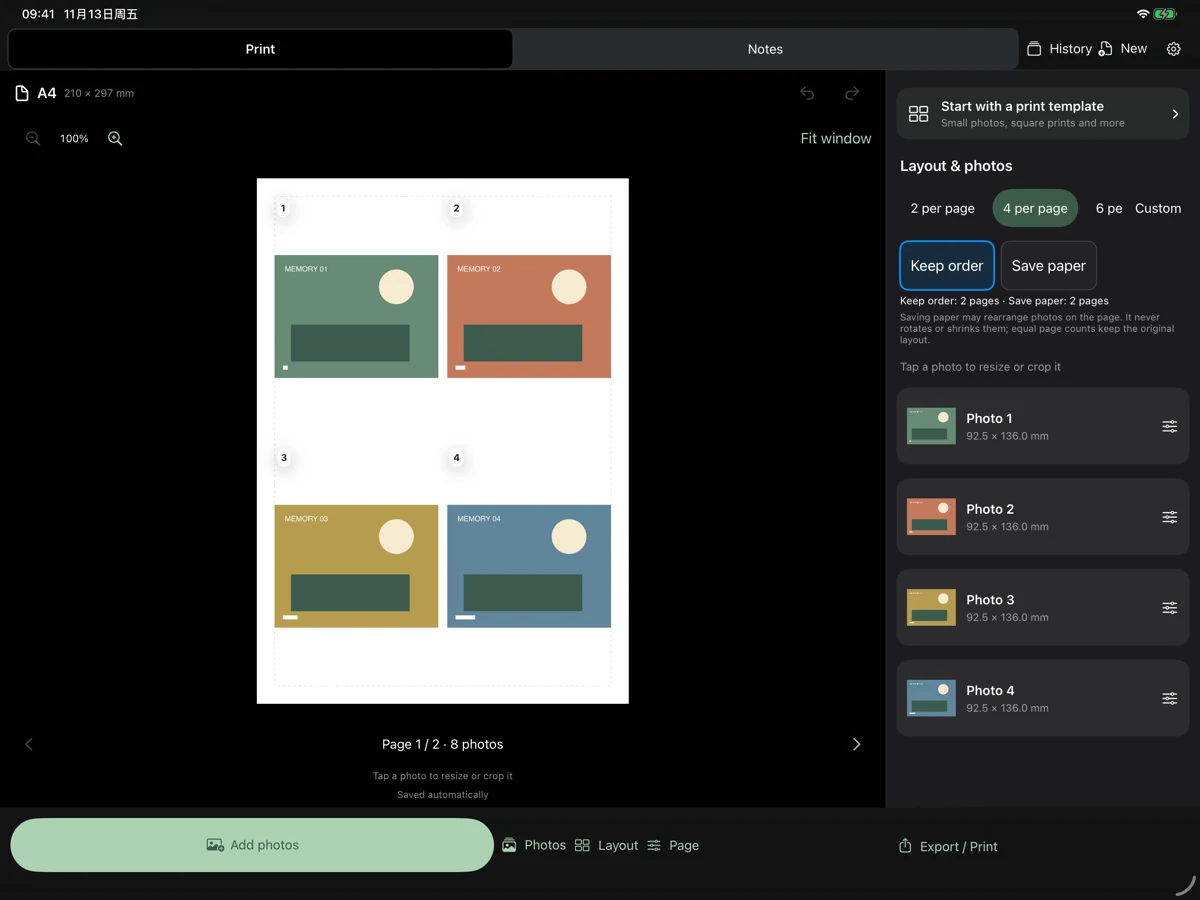
These steps mainly follow iPhone. A wider iPad window can show a canvas and editor side by side, with controls in a sidebar. The screenshots show the 1.4 interface. Check the App Store compatibility list for your device and region.
iPad · 1.4 (47) · English interface · iPhone and iPad adapt to the available space.Actual PaperSnips 1.4 screenshots
Contact support
Email wangnull@outlook.com with your device model, iOS version, and the steps that led to the issue.
Common questions
How do I print at the size I chose?
Export all pages as PDF, then select Actual Size or 100% in your printing app. Printer settings can resize a page. PaperSnips creates printable files; printing is handled by your printing app and printer.
Should I choose Keep whole or Fill?
Keep whole preserves the full photo within its frame. Fill crops the photo to cover the frame. If a page is full, photos continue onto another page.
How do free exports and Pro work?
1.4: The free version exports three distinct projects. Re-exporting the same project does not use another project. PaperSnips Pro is a one-time purchase with no subscription.
Use Settings → Restore Purchases with the Apple Account used for your purchase to restore eligible entitlements.
Where are my projects saved?
Projects are stored locally. Recently deleted projects can be recovered in History. Export files you want to keep before removing the app; uninstalling can remove local app data.