First: is the whole page smaller, or only the image?
- Every frame is smaller: check page scaling and the selected paper size before editing the project.
- The frame is right, but the image has empty space: this may be the photo's Fit setting. Fit preserves the image within its frame; it is different from fitting a PDF to paper.
- Dimensions are right, but the edge is cut off: check the printer's non-printable border and the project margins.
- Only some photos appear: confirm you exported the full PDF. PaperSnips JPEG export contains the current page, not all pages.
Use this check order before exporting again
- Open the original exported PDF, not a screenshot or an image re-saved by a messaging app. Confirm its page count and chosen paper dimensions.
- Match the printing app's paper choice to the loaded paper. A4 is 210 × 297 mm; US Letter is 215.9 × 279.4 mm. They are not interchangeable for a dimension-sensitive layout.
- Choose Actual Size or 100% if available. In Acrobat's desktop printing workflow, Fit resizes the page to the printable area, while Actual Size does not scale it. See Adobe's page-size guidance.
- Check the printer's required margins. Printing without scaling can still clip content outside its printable area. Leave more room around the layout instead of assuming borderless support.
- Print one test page and measure before committing to a batch.
My iPhone print screen has no 100% setting. What now?
Controls vary by app and printer. Do not assume that a missing control means the output is automatically full-size. Check the printer maker's app or use a desktop PDF print dialog with a scale setting. A print service can also accept the original PDF with a request to preserve its page dimensions. Ask it not to fit the file to the paper.
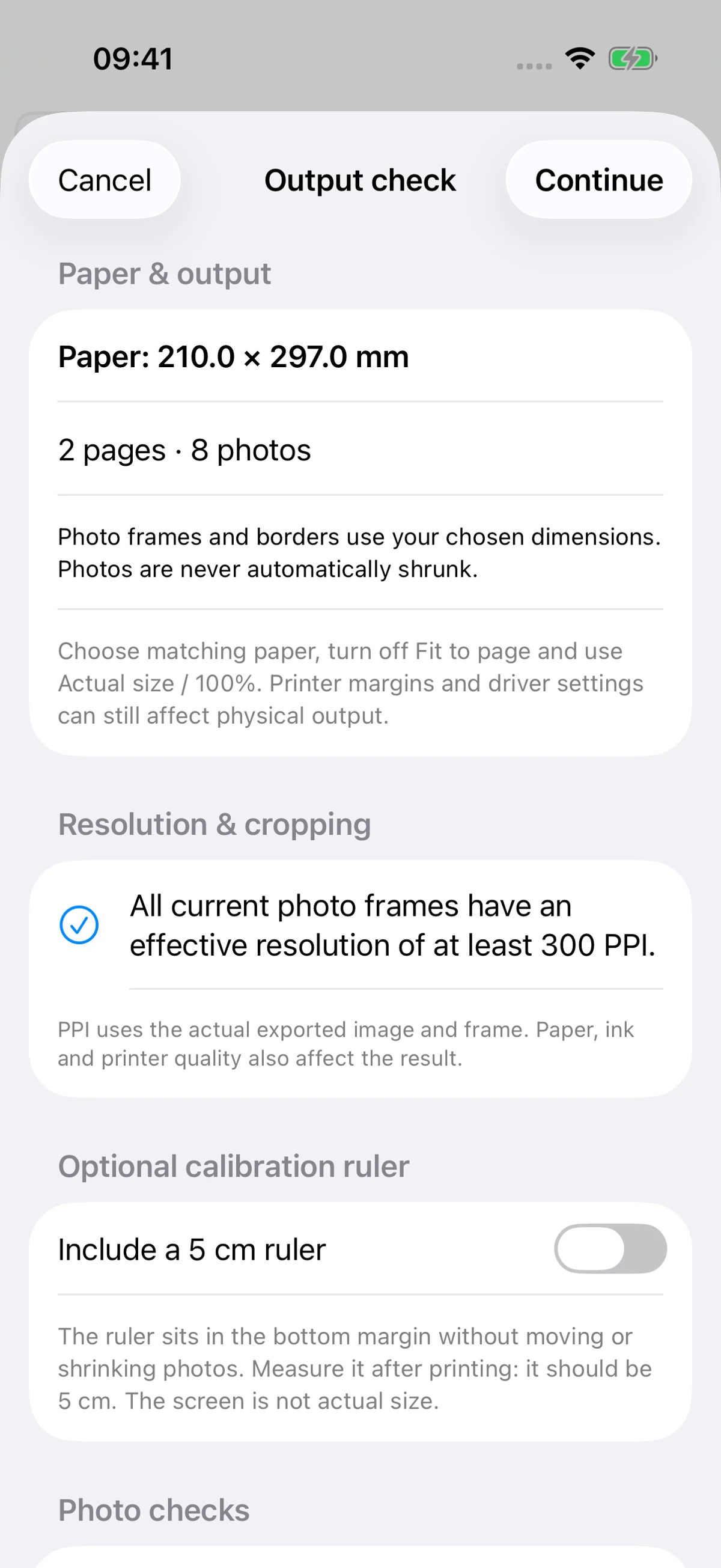
PaperSnips creates the file, but cannot control every later print dialog. Its current PDF and JPEG export options are shown below.
What does the 50 mm test line tell me?
Print the free A4 planning sheet at actual size, then measure its 50 mm line. If a line measures 48 mm, the measured scale is 48 ÷ 50 = 96%. This is a diagnostic calculation, not a measured result from our printer.
A correct test line checks that sheet's print path only. Repeat the size check on your actual exported PDF if you change apps, printers, paper or settings. The sheet is a blank SVG planner, not a PaperSnips PDF export, and has not been physically print-tested.
Does 300 dpi guarantee the right physical size?
No. Resolution and print scale are different. A print tool can rescale a JPEG regardless of its resolution metadata. For a page with selected physical dimensions, start with the exported PDF and still verify the paper and scaling settings.
Choose your next step
- Arrange several photos on A4 without Word
- Set 50 × 70 mm photo frames
- Fix PDF print scaling
- Try the free A4 planning sheet and 50 mm scale check
Make a photo page with PaperSnips · iOS 1.4. iPhone and iPad; current regional availability and pricing are shown in the App Store.
Three settings to check separately
Paper size (A4 or Letter), photo Fit/Fill, and print scaling solve different problems. A correct photo frame can still contain a smaller visible image, and an incorrectly matched printer paper size can rescale the whole page.
See the A4/Letter calculations and Fit/Fill examples. They are explanatory calculations, not physical print measurements.