A trip in pictures
Give each stop a short caption and keep the sequence in one PDF.
 PaperSnips
PHOTO + TEXT · 1.3 AVAILABLE
Keep the picture and the words together. PaperSnips 1.3 lets you combine images, captions and independent text paragraphs in a separate project, then make a PDF or long images to share.
Try the repair-photo tutorial and see the real sample exports
Choose the Photo + Text mode and create a new project. It is separate from Photo Printing, so your print layouts keep their own workflow.
Add images, write a note for each one, change the order, or replace an image. Use undo when you want to step back. Drafts save locally.
Scroll through every PDF page or every long-image segment before exporting. The preview uses the same layout and rendering as the export.
Choose a multipage PDF or JPEG long images. Longer content can be split into image segments. Use the clearly labelled project history to return to a saved project.
Retained workflow concepts, not app screenshots or actual exports. These do not show the 1.3 interface. The complete 1.3 guide describes the three layouts.
Give each stop a short caption and keep the sequence in one PDF.
Collect screenshots or reference images with the details you want to remember.
Put before-and-after images in order and explain what changed.
These limits apply to photo-and-text projects only. The existing photo-printing allowance remains separate.
Free
Up to 10 finished versions in that project.
Pro
Includes the free project already used. Up to 10 finished versions per project.
Max
Includes existing photo-and-text projects, even if their earlier 10-version allowance was used. Device storage and technical limits still apply.
A changed project consumes a new finished version only after output is generated successfully. Exporting the same content again, or switching that same finished content between PDF and long images, does not use another version. Cancelling before successful generation or a failed generation does not deduct a version. Deleting a project does not return its allowance, and allowances do not reset daily or monthly. The app shows the remaining allowance before export. Closing the system share sheet is not proof that a file was saved elsewhere.
1.4: Pro, Max and an eligible Pro-to-Max upgrade are one-time purchases, not subscriptions. Availability and your local price are shown by the App Store. This guide does not promise that an unreleased version or purchase is already available.
Photo Printing is for physical photo sizes, page margins, spacing, and printing. Its free allowance remains exports for 3 different print projects in total; re-exporting the same print project does not consume another project. Pro continues to unlock additional print-project exports. The 300 dpi JPEG description belongs to photo printing, not to photo-and-text long-image exports.
See photo printing ↗Yes. In 1.3, the photo-and-text preview includes all PDF pages and all long-image segments, with vertical scrolling.
The layout tries to keep an image and its short note on the same page. A long note can continue onto another page; not every note can be kept on a single page.
Yes. Max has no set finished-version allowance for old or new photo-and-text projects. Your existing local history is kept when your purchase entitlement changes.
No. Restore Purchases restores the eligible purchase entitlement, not local projects or their usage history. Keep copies of files you want to retain.
No PaperSnips account or photo upload is required for this workflow. Image processing and project storage are local. If you share an export through another app, that app handles the file under its own terms.
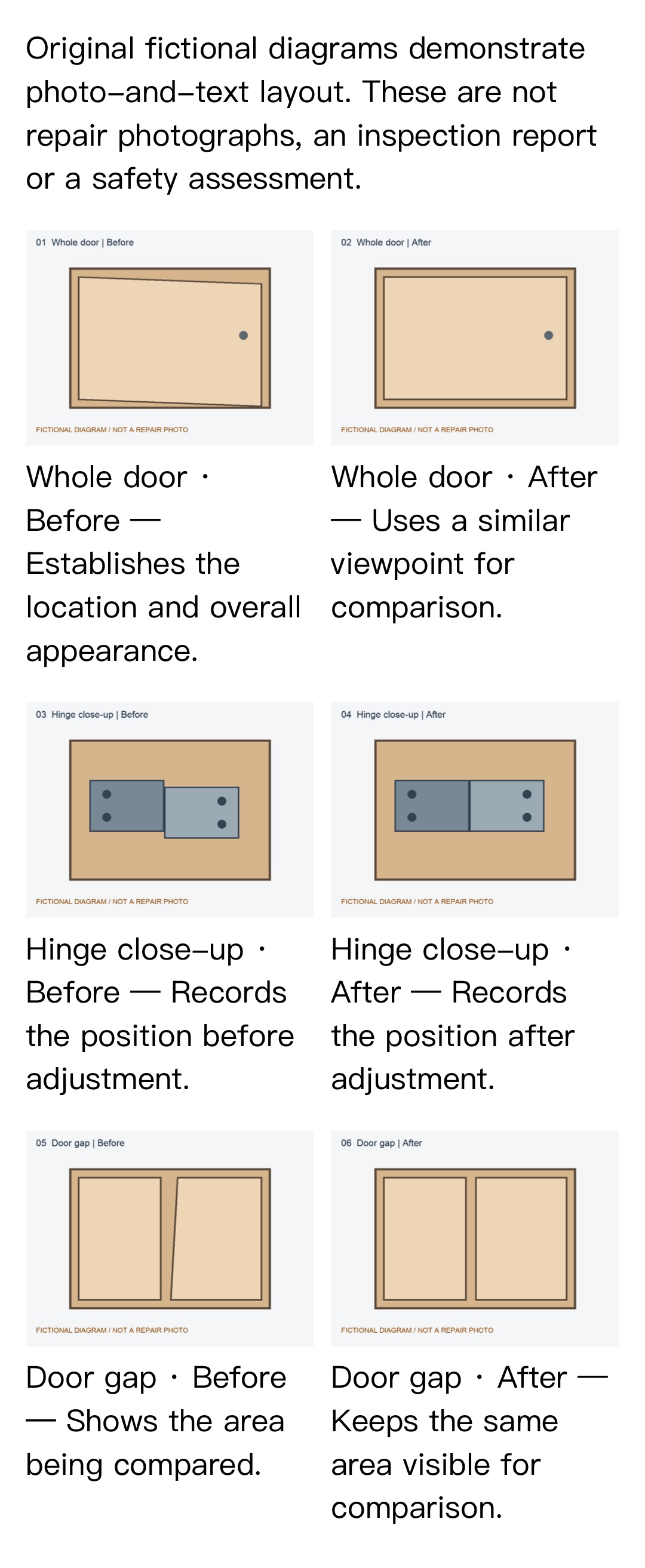
A folder of photos does not always explain what changed. Pairing a before photo with an after photo, then adding a short caption, gives the reader a useful sequence. Here is a simple way to organize a kitchen cabinet-door adjustment record.
Use three matching pairs: a whole-door view, a hinge close-up and a door-gap detail. Keep the before and after viewpoints reasonably similar. Avoid including an address, unrelated people or other private details in your demonstration.
Arrange the photos in this order: whole door before, whole door after, hinge before, hinge after, gap before, gap after. Keep the original photographs separately. The PDF is an organized reading copy.
In version 1.3, use a photo-and-text project rather than a photo-print project. Name it “Kitchen cabinet-door adjustment.” Add a separate introduction explaining the scope:
“This document organizes before-and-after photographs of a cabinet-door adjustment. This is a demonstration, not a professional inspection, acceptance certificate or safety assessment.”
For a real record, add only dates, locations and observations you can verify. Do not present the example as a real job.
A useful caption identifies the location, stage and detail to inspect:
These are example captions, not observations from actual photographs. Do not infer a successful repair or a safety result from an image alone.
A two-column gallery can make before-and-after photographs easier to compare. A stacked layout gives detailed images and longer captions more room. Side-by-side photo and text is useful when one image needs an explanation.
Two columns do not guarantee that each pair stays together on one page. Inspect the automatic pagination. If a pair is separated, a caption becomes difficult to read or an important detail is too small, shorten the caption or use a stacked layout. Readability matters more than the smallest page count.
Check that all six images are present, the sequence is correct and each caption belongs to the right image. Look closely at page boundaries and small text, not just the first preview page.
A PDF suits a multi-page record. Long images are convenient for quick viewing, but messaging apps may shrink a tall image. Prefer the PDF when small captions need to remain readable.
After exporting, reopen the actual file in your device's file viewer. Check the photos, captions, page count and reading order again before sending it.
This workflow organizes images and writing. It does not promise automatic defect detection, verified capture times, authenticated evidence, electronic signatures or compliance with insurance, legal or professional inspection requirements. Keep original materials and follow the recipient's requirements when those matter.
A destination you choose when sharing receives the exported content. Review names, addresses and other private details before sending.
Developer test: an isolated PaperSnips 1.3 (43) simulator test build exported the actual files through the app’s native sharing flow. The two-column grid contains six fictional illustrations, six captions and a separate introduction. The PDF has two A4 pages: items 01–04 on page one and 05–06 on page two. The long image is 1080 × 2626 pixels. Exported text and order were checked, and the long image was visually reviewed. This was not a physical-device release-build test; reopening a saved draft, Save to Files and physical printing were not verified in this run. “Side-by-side” pairs one image with text; it is not the two-photo-column grid used here.
Download the actual two-page PDF example (127 KB) · Open the exported long image (439 KB)
English sample text; original fictional diagrams, not repair photographs. Both files are unmodified app exports.